Learning Objectives
After completing this lesson, you’ll be able to:
- Configure an Automation with a Manual Trigger.
- Create and use Manual Parameters to pass input to an Automation.
- Create an Automation App.
- Trigger an Automation through an App.
Resources
- Starting project | C:\FMEData\Workspaces\AutomateWorkflowsWithFMEFlow\automate-workflows-with-fme-flow--starting-project.fsproject
- ElectionVoting.gml | C:\FMEData\Data\Elections\ElectionVoting.gml

This lesson takes a slight detour into Flow Apps to cover Automation Apps. For more training on Flow Apps, see Create No-Code Web Apps.
Automation Apps
FME Flow Apps are no-code web applications that let you access FME functionality without any FME experience. They simplify the user experience by turning technical workflows into easy-to-use web forms you can access and share with a URL. Automation Apps allow you to trigger and control input to a pre-built Automation from the web application.
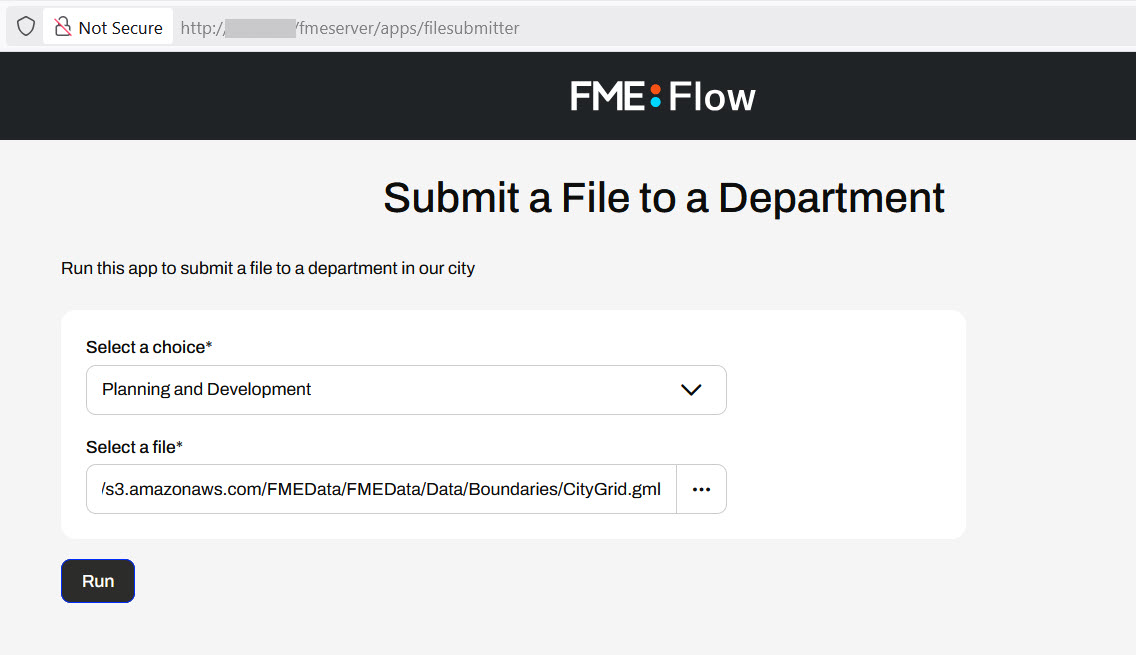
To use an Automation in an Automation App, your Automation must use a Manual Trigger. Manual Triggers do not respond to external events and instead trigger Automations on demand. Automation Apps send messages to Manual Triggers to kick off the Automation.
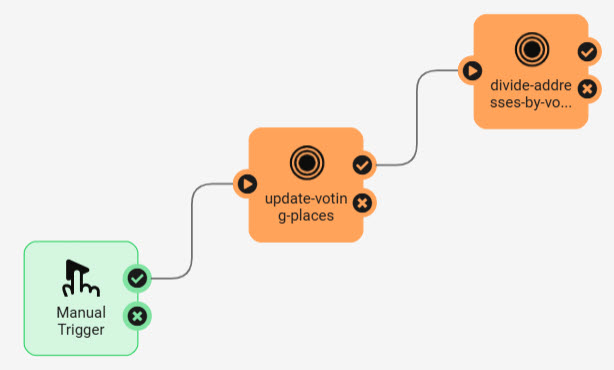
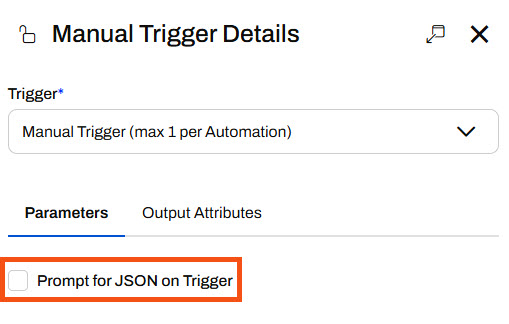
The only Parameter to configure for a Manual Trigger is the Prompt for JSON on Trigger option. This option allows you to enter JSON input into Automation when you manually trigger it from the Automations canvas. It is usually unnecessary for Automations you plan to trigger through Automation Apps.
Manual Parameters
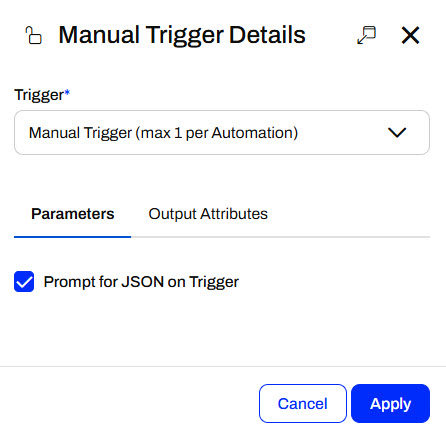
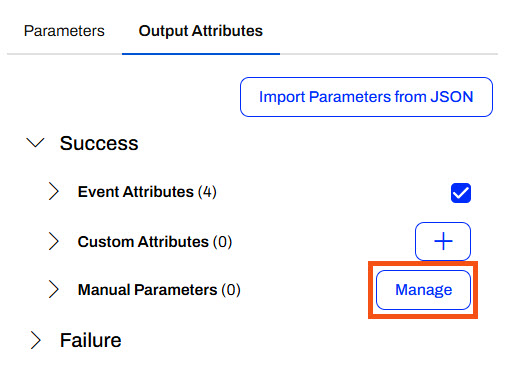
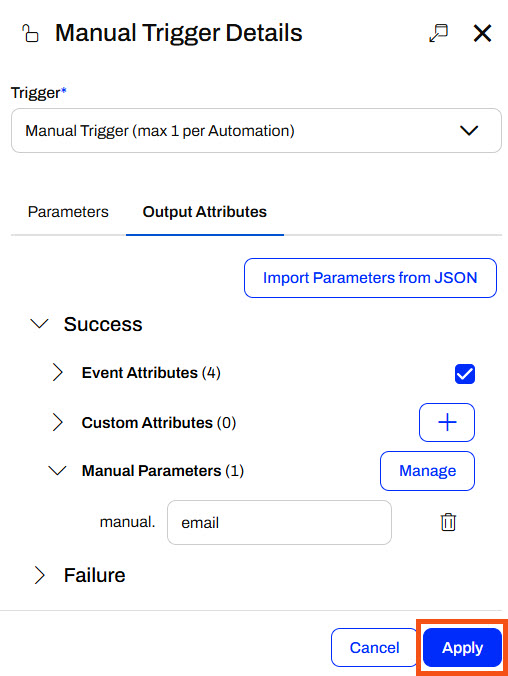
Manual Triggers have unique Output Attributes called Manual Parameters. Manual Parameters are customizable attributes that you create to take input into your Automation. To add and edit Manual Parameters for an Automation, you must open the Manual Trigger Details. In the Output Attributes tab, you'll see Manual Parameters nested under Success.
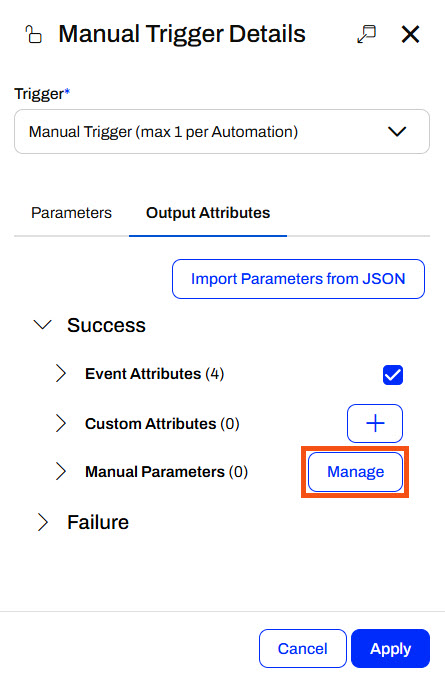
You click Manage to open the Manual Parameters Editor, where you create Manual Parameters. Like User Parameters, there are many options for different types of input to your Automation, depending on your workflow.
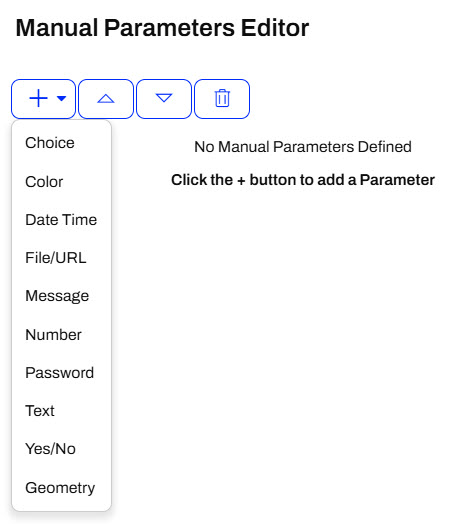
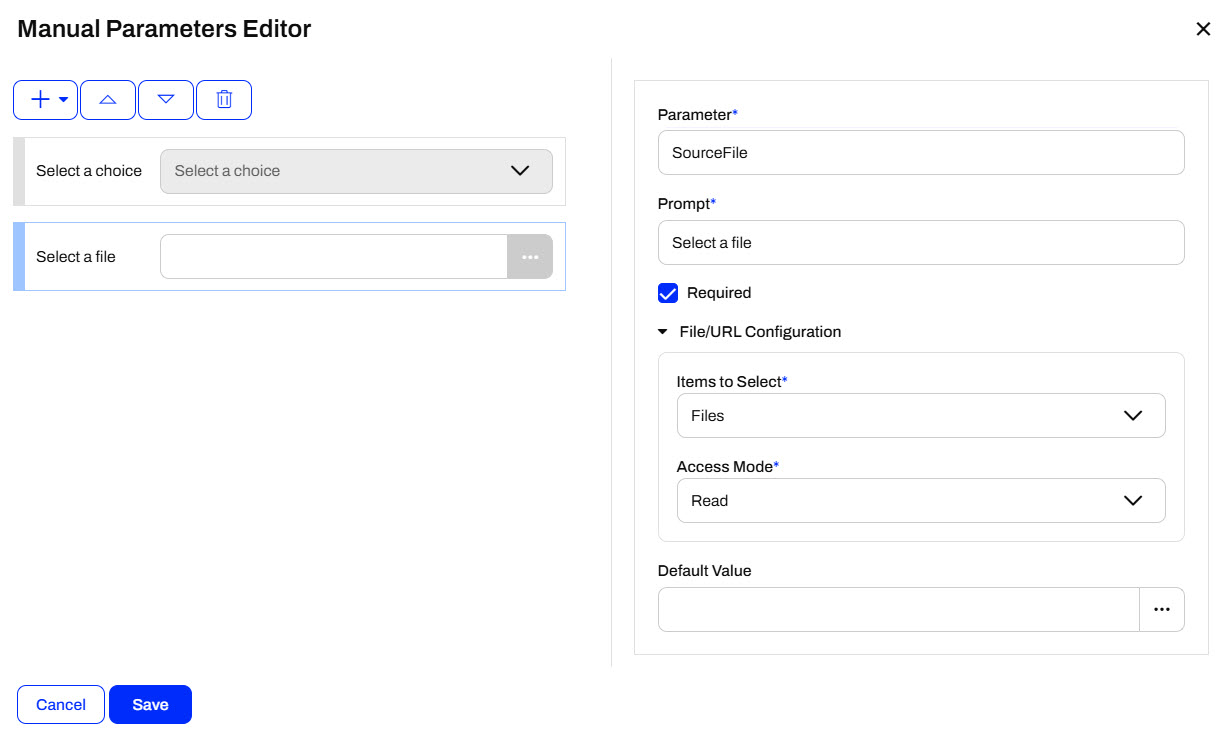
The Manual Parameters Editor displays the list of parameters on the left side and the properties for individual parameters on the right.
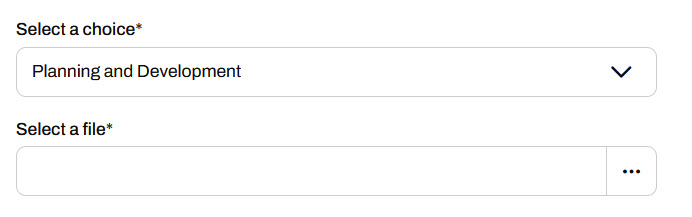
When you create an Automation App, these parameters are displayed on the app's web page for users to enter their values.
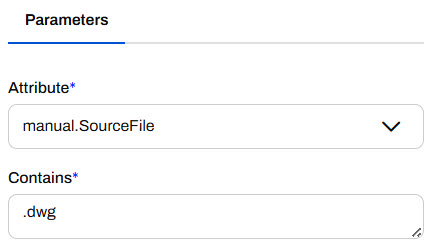
To use the input values in your Automation, you reference Manual Parameters in downstream actions like any other Output Attributes and Automation Parameters. All Manual Parameters begin with the prefix manual.
Creating Automation Apps
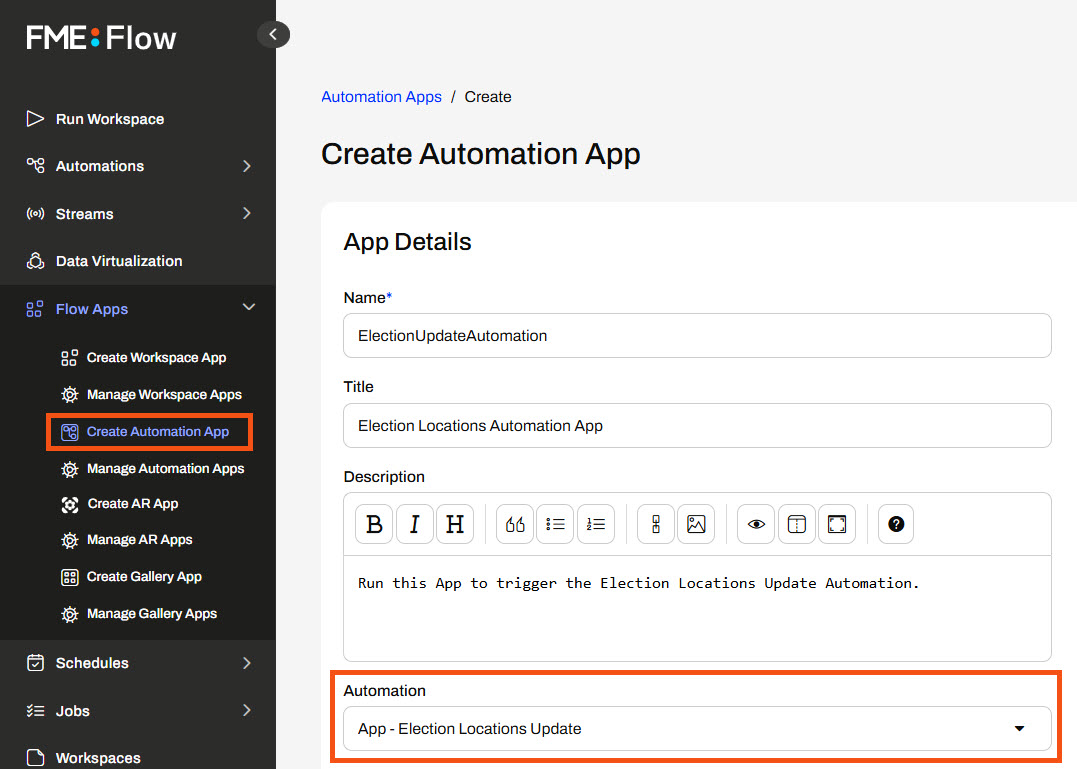
You create Automation Apps just like any other Flow Apps, by filling out a form with your app details, the Automation you'd like to run, any default parameter values, and customizing the look of your app. To access the form, expand Flow Apps in the side menu and select Create Automation App.
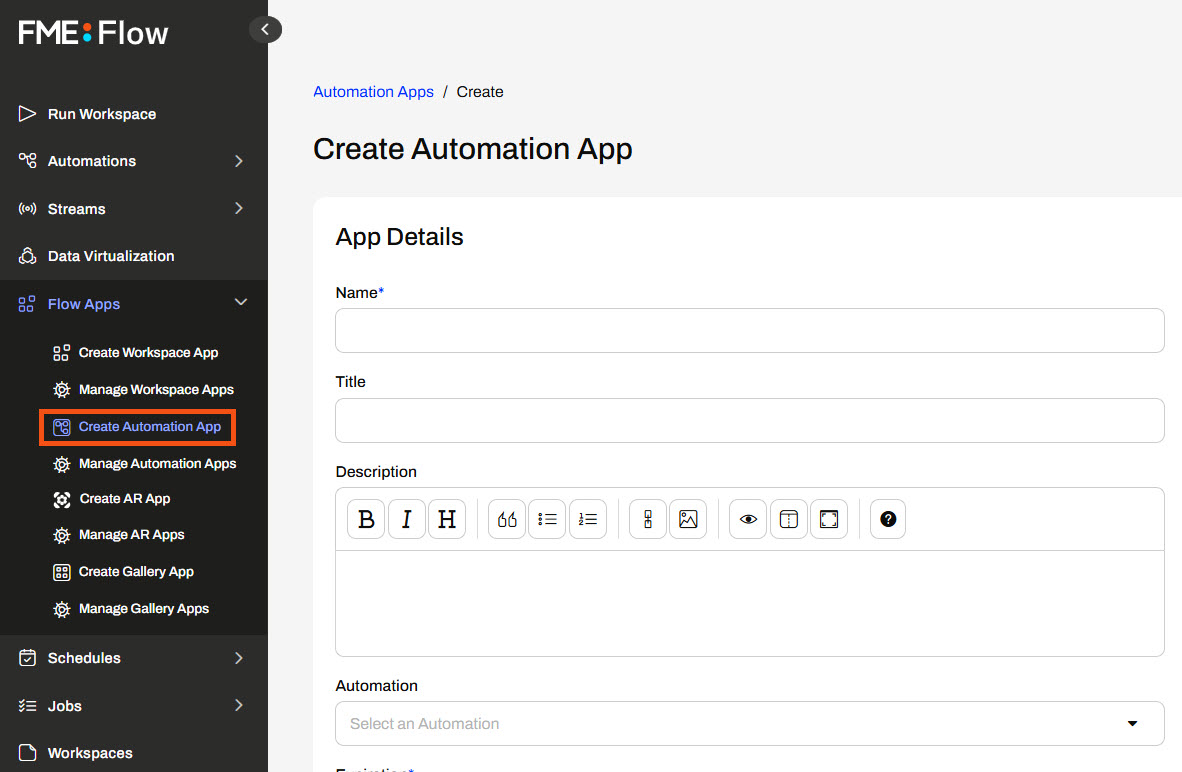
For the Automation option, you'll only be able to select Automations on FME Flow that have a Manual Trigger.
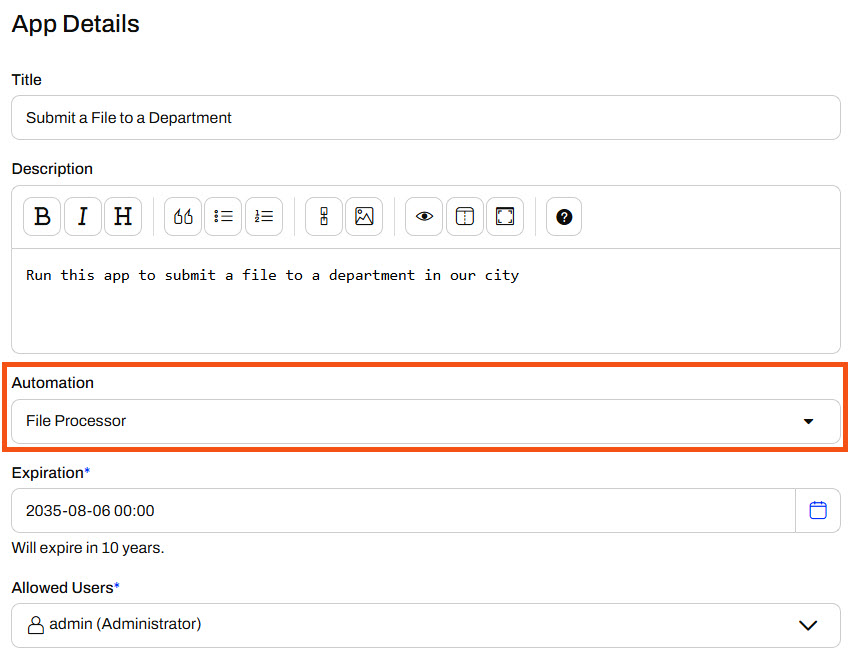
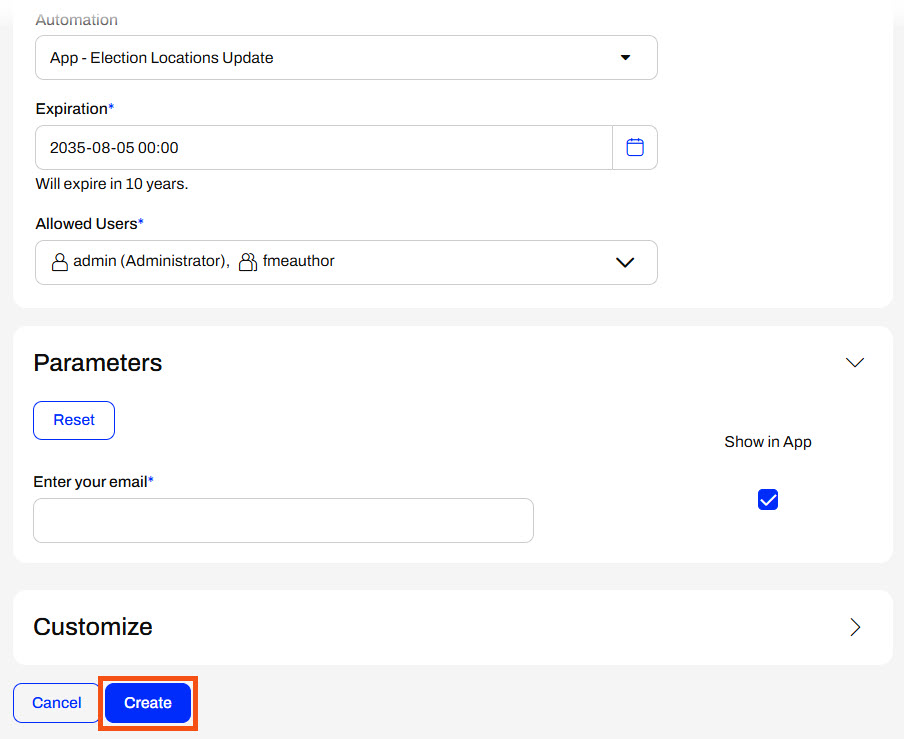
Unlike Workspace Apps, which may be publicly accessible, Automation Apps require FME Flow users to log in to FME Flow to access the app due to the complexity of Automations. Using the Allowed Users parameter, you should select the users and roles to access your app.
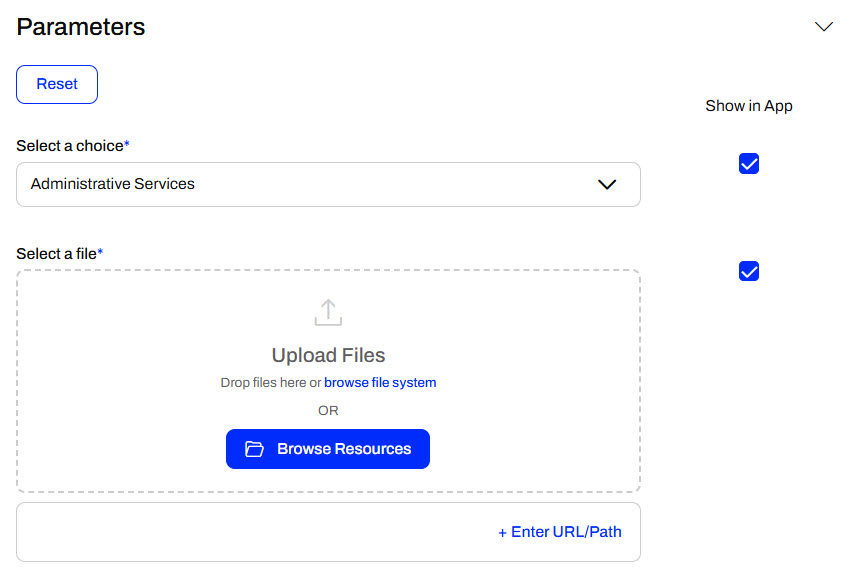
Once you select an Automation, the Parameters section populates with the Manual Parameters you created in the Manual Trigger. You may set default values for the parameters and optionally hide them from the app so the end-user cannot alter the default value for the parameter.
The last section to create your app is the Customize section. You can add icons and banners and change the app's colors to remove the default FME Flow branding and match your organization. Ultimately, you can make Flow Apps look like they don't use FME Flow at all.
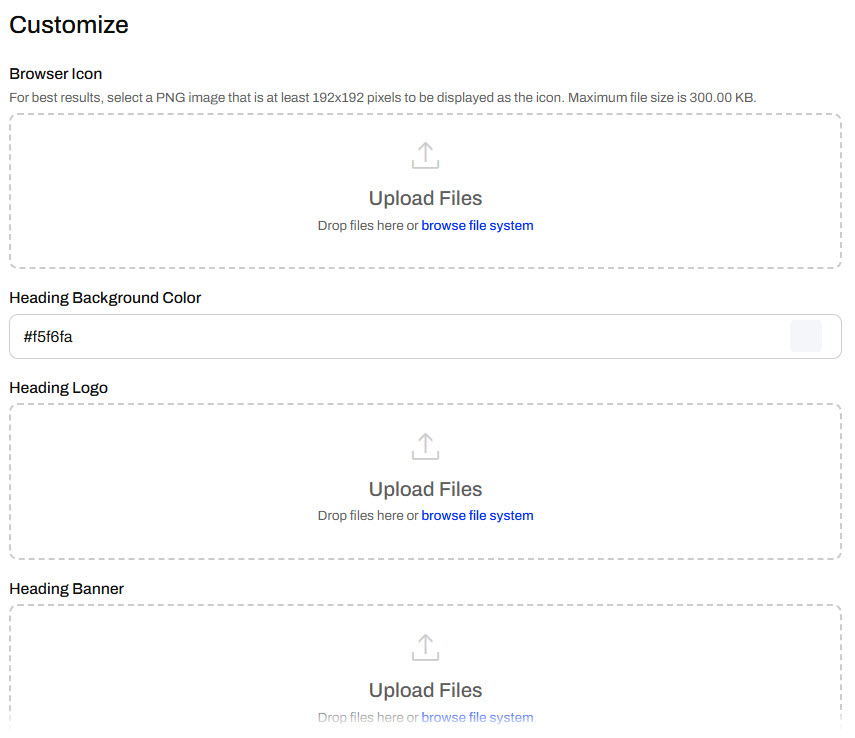
For more information on customizing apps, see our Flow Apps documentation and/or the Getting Started with FME Flow Apps tutorial.
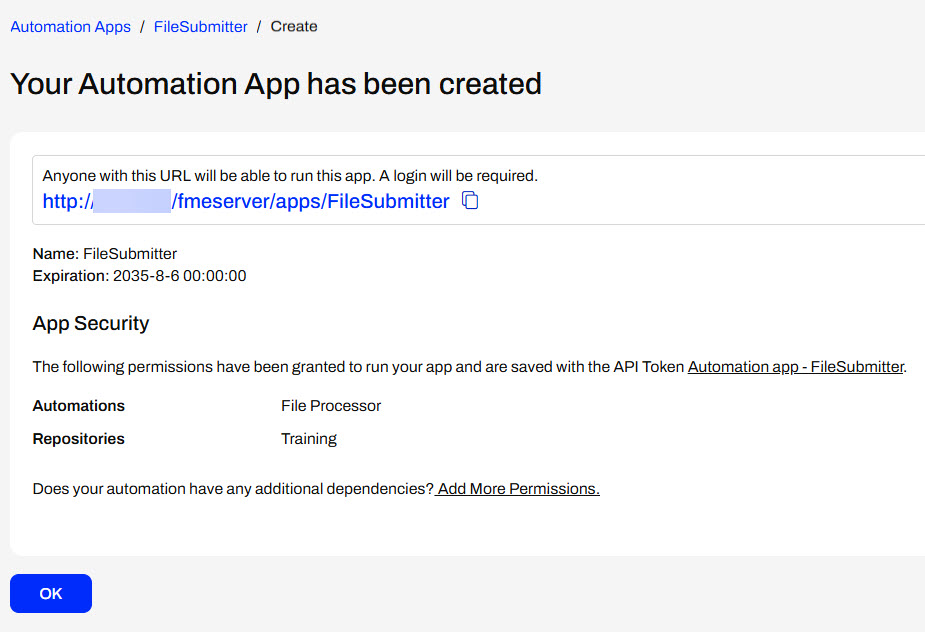
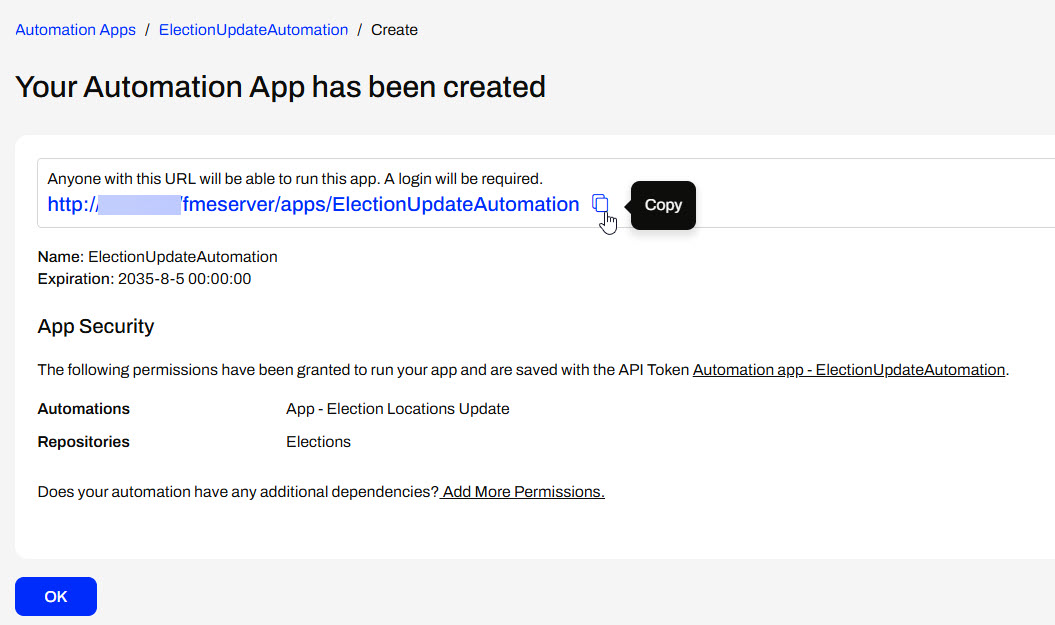
Once you create your app, FME Flow displays the app URL and some security information. You can click the URL to open the app in a new tab or copy it to share.
Running Automation Apps
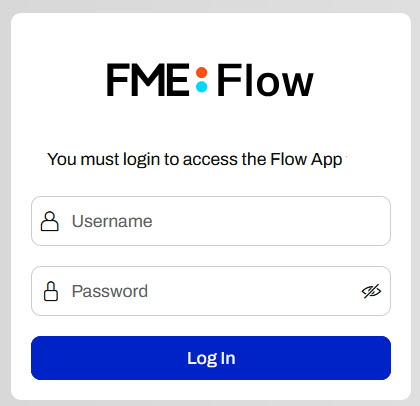
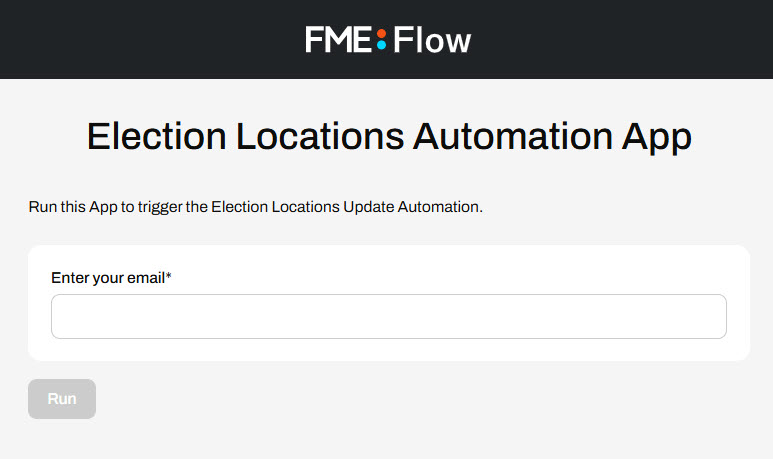
To access an Automation App, you need to go to the app URL in a web browser with access to FME Flow. If you are not logged into FME Flow, you must log in to see the app page.
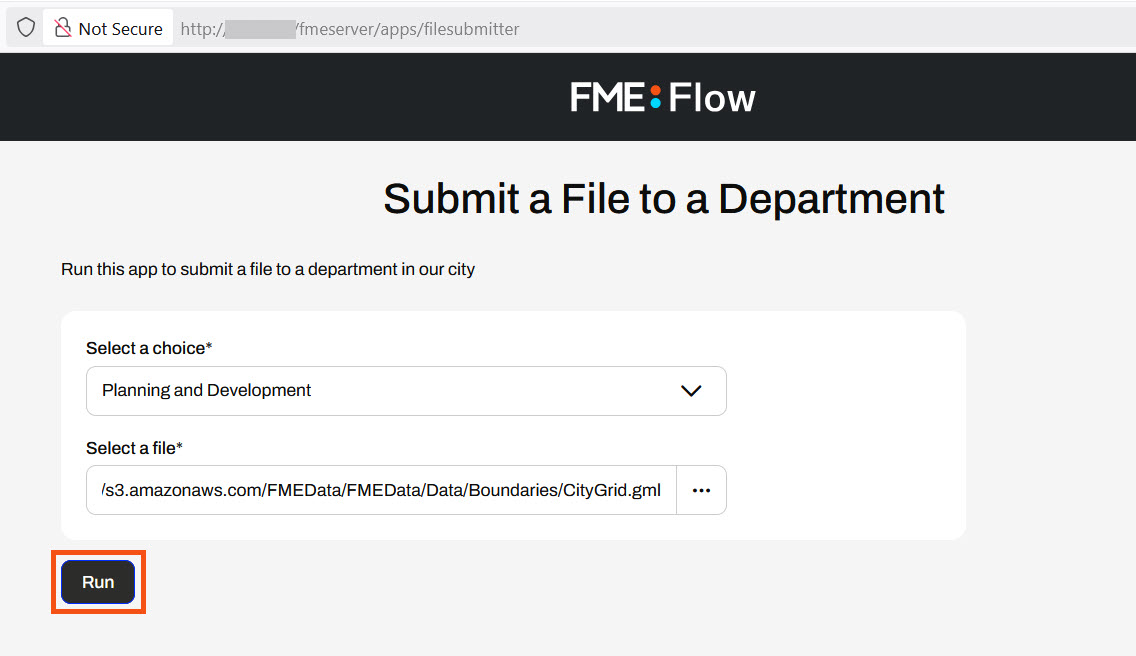
Once the app loads, enter your parameter values and click Run.
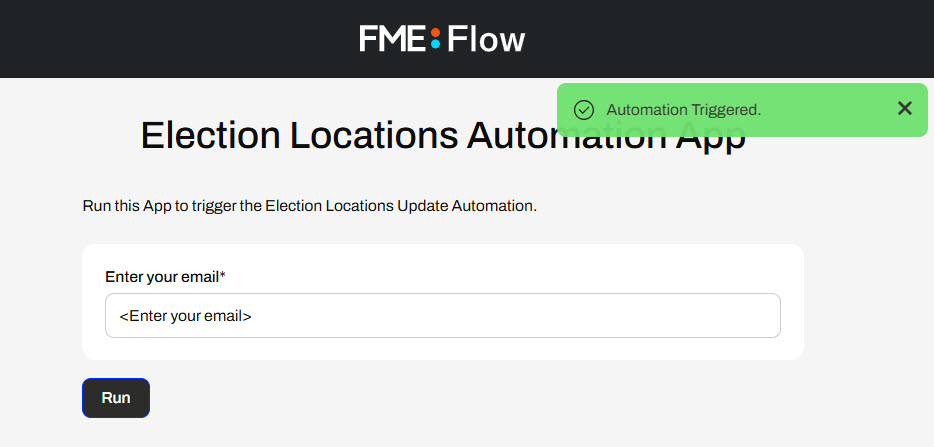
FME Flow will display a message at the top right of the app indicating whether the Automation triggers successfully or not.

Automation App Troubleshooting Tips
- To run an Automation using an App, the Automation must use a Manual Trigger. You cannot select Automations without a Manual Trigger from the Create Automation App page.
- To run an Automation from an App, you must start the Automation in the running state.
- If you receive a warning message saying, "The selected automation is disabled," your app is enabled, but the Automation has not been started. Please return to the Automation and start it.


For further instructions and information on Automation Apps, see our documentation on Automation Apps and Manual Triggers.
Exercise
This exercise continues where the Chain Multiple Jobs in Automations exercise left off. You should complete the previous exercise before continuing with this one.

Sven continues working with his Election Locations Update Automation. It works great to update the data annually; however, some of his colleagues in the Planning department want to update the Elections data themselves when they use it for specific projects. Sven would like to allow his colleagues to trigger his Automation manually so they don't request Sven to run it. Not all of Sven's colleagues are familiar with FME Flow Automations, so he creates an Automation App that lets them trigger the Automation.
Follow along with Sven as he creates an Automation App to share his Automation with his colleagues.
1) Duplicate Automation
Sven navigates to FME Flow and opens the Manage Automations page. He selects his Election Locations Update Automation, expands the Actions options, and selects Duplicate.
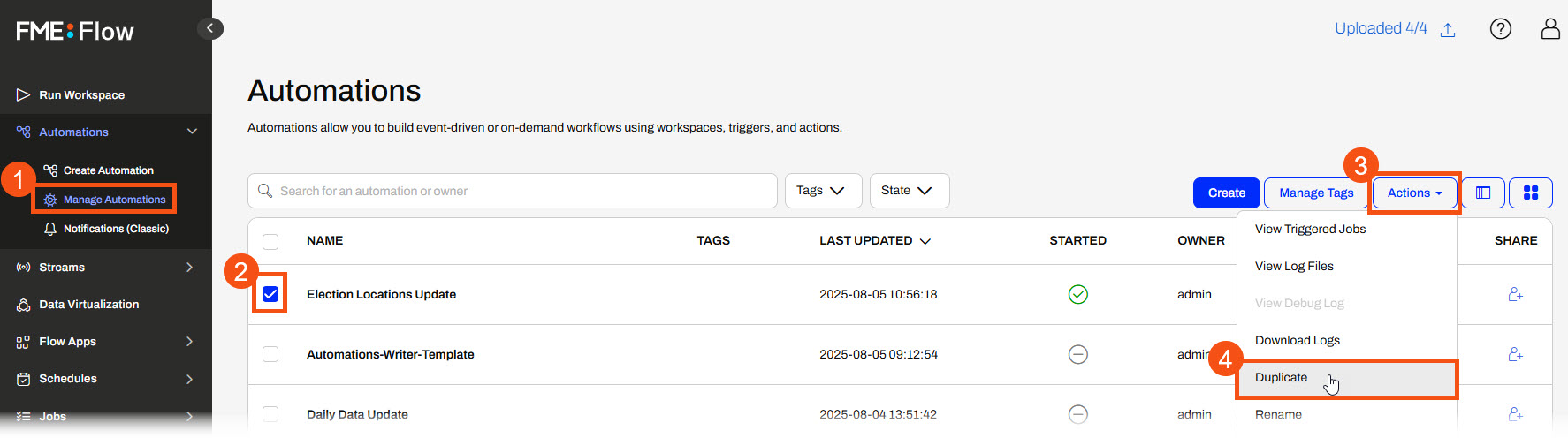
Sven duplicates the Automation because he needs to change the Schedule trigger to a Manual trigger, and he still wants his Automation to run annually on the Schedule.
2) Rename Automation
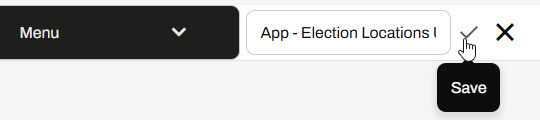
Sven clicks the new Automation, Election Locations Update(1), to open it. He edits the Automation name to prefix it with "App -" and remove the "(1)". Sven double-clicks the current name along the Automations toolbar to edit it, then clicks the checkmark to save the new name.
3) Swap Trigger to a Manual Trigger
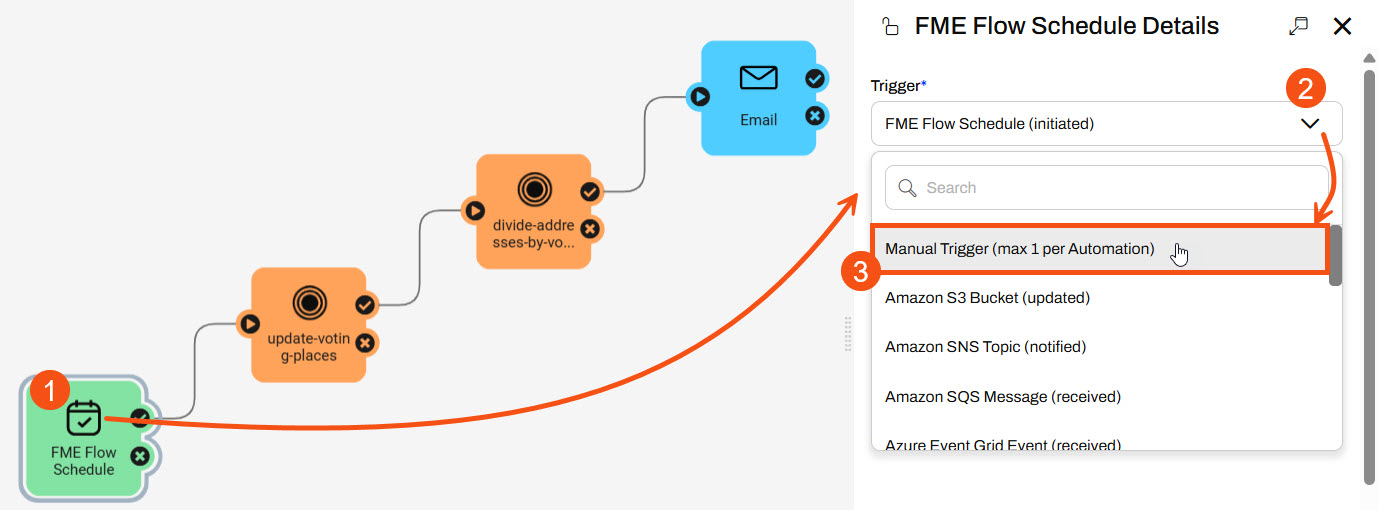
Sven clicks the FME Flow Schedule trigger icon to open its details. He swaps the Schedule trigger for a Manual Trigger.
In the trigger Parameters tab, Sven disables Prompt for JSON on Trigger. He doesn't need to take input to the Automation when it is manually triggered from the Automation itself.
4) Add Manual Parameter
Sven goes to the Output Attributes tab and selects Manage next to Manual Parameters to open the Manual Parameters Editor.
Sven wants the user running the Automation App to enter their email so they receive an alert that the Automation triggered. He will take their emails as input using a Text parameter, so he adds a new Text parameter.
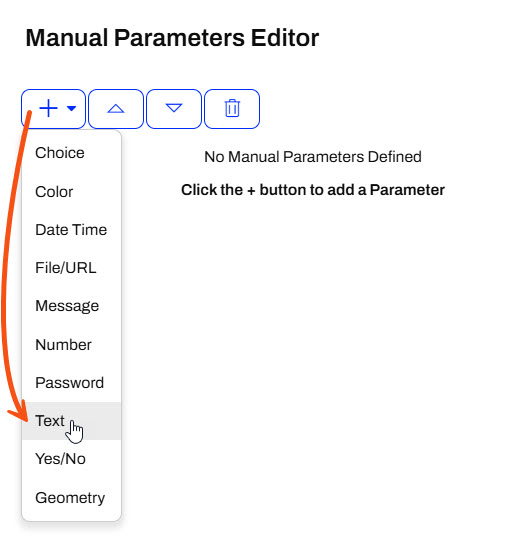
Sven renames the Parameter to email and changes the Prompt to Enter your email.
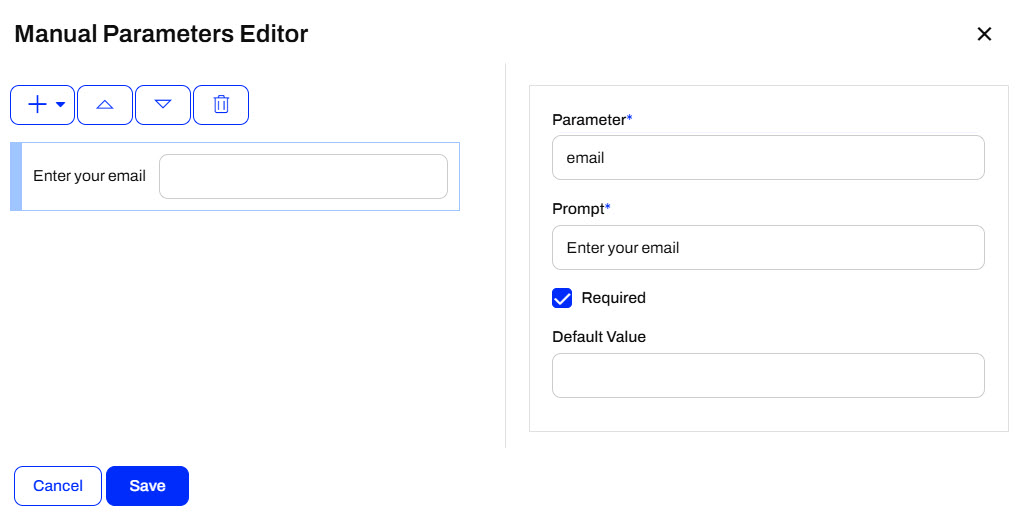
Sven clicks Save to close the Manual Parameters Editor, and then clicks Apply to close the Manual Trigger Details.
3) Update Email To
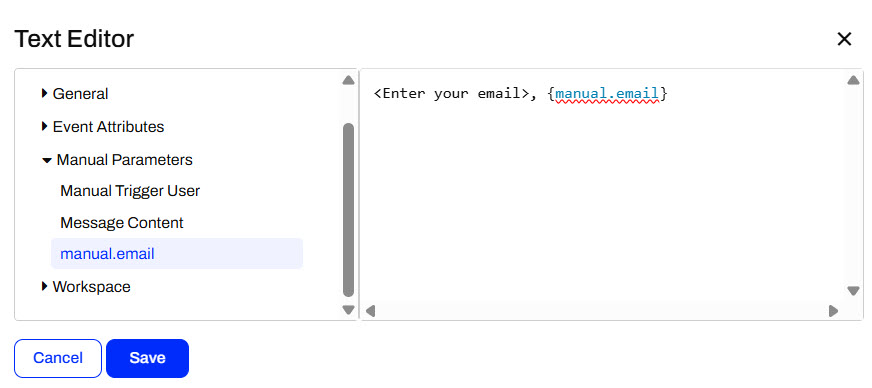
To send an email to the email address Sven's colleagues will enter in the App, he must reference the manual.email parameter in the Email action. Sven clicks the Email action icon to open its details and scrolls down to the Email To parameter. He uses the drop-down menu to open the Text Editor.
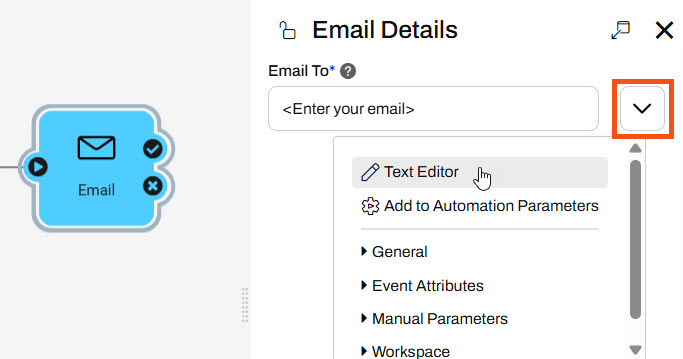
FME Flow sends emails to multiple addresses separated by commas in the Email To value. In the Text Editor, Sven adds a comma after his email and selects the manual.email attribute. By doing so, Sven will send an email to both the email address his colleagues enter in the Automation App and himself.
Sven clicks Save to close the Text Editor. He then clicks Validate to ensure the updated parameters are valid, and once they are, he clicks Apply to close the Email details.
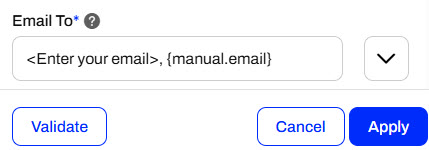
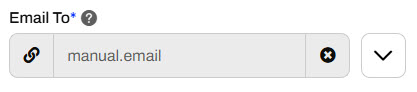
You will enter your email address when you run the Automation App. These current settings will send you two emails with the same information. If you wish to only receive one email, you may solely use the {manual.email} attribute in the Email To parameter.
4) Save Automation
Sven saves his Automation and starts it.

5) Create Automation App
Sven expands the Flow Apps section on the side menu and selects Create Automation App. He gives his app a name, title, and description. For Automation, he selects his App - Election Locations Update Automation.
Sven scrolls down on the Create Automation App form. He adds the fmeauthor role, encompassing his colleagues, to Allowed Users. He doesn't alter other settings and clicks Create to finish creating the app.
FME Flow displays the app URL and gives Sven the option to copy it. He can also copy the URL from the Manage Automation Apps page.
Sven clicks the link to open his app in a new tab.
If you receive a warning that the Automation is disabled, you likely forgot to start the Automation. Return to your Automation and start it, then return to your app and refresh the page.
6) Run Automation App
Sven enters his email in the app and clicks Run. FME Flow displays an Automation Triggered message at the top right.
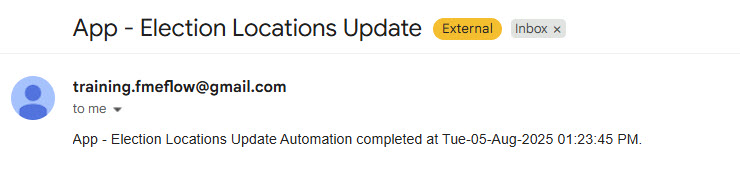
Sven receives an email informing him that the Automation App ran.
Sven has now created an Automation App to share with his colleagues, which will trigger his Election Locations Update Automation to run. His colleagues don't need to be familiar with FME Flow Automations to use and trigger Automations, and the app is easily shareable with a URL.
Learning Objectives
After completing this lesson, you’ll be able to:
- Configure an Automation with a Manual Trigger.
- Create and use Manual Parameters to pass input to an Automation.
- Create an Automation App.
- Trigger an Automation through an App.
Resources
- Starting project | C:\FMEData\Workspaces\AutomateWorkflowsWithFMEFlow\automate-workflows-with-fme-flow--starting-project.fsproject
- ElectionVoting.gml | C:\FMEData\Data\Elections\ElectionVoting.gml
This lesson takes a slight detour into Flow Apps to cover Automation Apps. For more training on Flow Apps, see Create No-Code Web Apps.
Automation Apps
FME Flow Apps are no-code web applications that let you access FME functionality without any FME experience. They simplify the user experience by turning technical workflows into easy-to-use web forms you can access and share with a URL. Automation Apps allow you to trigger and control input to a pre-built Automation from the web application.
To use an Automation in an Automation App, your Automation must use a Manual Trigger. Manual Triggers do not respond to external events and instead trigger Automations on demand. Automation Apps send messages to Manual Triggers to kick off the Automation.
The only Parameter to configure for a Manual Trigger is the Prompt for JSON on Trigger option. This option allows you to enter JSON input into Automation when you manually trigger it from the Automations canvas. It is usually unnecessary for Automations you plan to trigger through Automation Apps.
Manual Parameters
Manual Triggers have unique Output Attributes called Manual Parameters. Manual Parameters are customizable attributes that you create to take input into your Automation. To add and edit Manual Parameters for an Automation, you must open the Manual Trigger Details. In the Output Attributes tab, you'll see Manual Parameters nested under Success.
You click Manage to open the Manual Parameters Editor, where you create Manual Parameters. Like User Parameters, there are many options for different types of input to your Automation, depending on your workflow.
The Manual Parameters Editor displays the list of parameters on the left side and the properties for individual parameters on the right.
When you create an Automation App, these parameters are displayed on the app's web page for users to enter their values.
To use the input values in your Automation, you reference Manual Parameters in downstream actions like any other Output Attributes and Automation Parameters. All Manual Parameters begin with the prefix manual.
Creating Automation Apps
You create Automation Apps just like any other Flow Apps, by filling out a form with your app details, the Automation you'd like to run, any default parameter values, and customizing the look of your app. To access the form, expand Flow Apps in the side menu and select Create Automation App.
For the Automation option, you'll only be able to select Automations on FME Flow that have a Manual Trigger.
Unlike Workspace Apps, which may be publicly accessible, Automation Apps require FME Flow users to log in to FME Flow to access the app due to the complexity of Automations. Using the Allowed Users parameter, you should select the users and roles to access your app.
Once you select an Automation, the Parameters section populates with the Manual Parameters you created in the Manual Trigger. You may set default values for the parameters and optionally hide them from the app so the end-user cannot alter the default value for the parameter.
The last section to create your app is the Customize section. You can add icons and banners and change the app's colors to remove the default FME Flow branding and match your organization. Ultimately, you can make Flow Apps look like they don't use FME Flow at all.
For more information on customizing apps, see our Flow Apps documentation and/or the Getting Started with FME Flow Apps tutorial.
Once you create your app, FME Flow displays the app URL and some security information. You can click the URL to open the app in a new tab or copy it to share.
Running Automation Apps
To access an Automation App, you need to go to the app URL in a web browser with access to FME Flow. If you are not logged into FME Flow, you must log in to see the app page.
Once the app loads, enter your parameter values and click Run.
FME Flow will display a message at the top right of the app indicating whether the Automation triggers successfully or not.
Automation App Troubleshooting Tips
- To run an Automation using an App, the Automation must use a Manual Trigger. You cannot select Automations without a Manual Trigger from the Create Automation App page.
- To run an Automation from an App, you must start the Automation in the running state.
- If you receive a warning message saying, "The selected automation is disabled," your app is enabled, but the Automation has not been started. Please return to the Automation and start it.
For further instructions and information on Automation Apps, see our documentation on Automation Apps and Manual Triggers.
Exercise
This exercise continues where the Chain Multiple Jobs in Automations exercise left off. You should complete the previous exercise before continuing with this one.
Sven continues working with his Election Locations Update Automation. It works great to update the data annually; however, some of his colleagues in the Planning department want to update the Elections data themselves when they use it for specific projects. Sven would like to allow his colleagues to trigger his Automation manually so they don't request Sven to run it. Not all of Sven's colleagues are familiar with FME Flow Automations, so he creates an Automation App that lets them trigger the Automation.
Follow along with Sven as he creates an Automation App to share his Automation with his colleagues.
1) Duplicate Automation
Sven navigates to FME Flow and opens the Manage Automations page. He selects his Election Locations Update Automation, expands the Actions options, and selects Duplicate.
Sven duplicates the Automation because he needs to change the Schedule trigger to a Manual trigger, and he still wants his Automation to run annually on the Schedule.
2) Rename Automation
Sven clicks the new Automation, Election Locations Update(1), to open it. He edits the Automation name to prefix it with "App -" and remove the "(1)". Sven double-clicks the current name along the Automations toolbar to edit it, then clicks the checkmark to save the new name.
3) Swap Trigger to a Manual Trigger
Sven clicks the FME Flow Schedule trigger icon to open its details. He swaps the Schedule trigger for a Manual Trigger.
In the trigger Parameters tab, Sven disables Prompt for JSON on Trigger. He doesn't need to take input to the Automation when it is manually triggered from the Automation itself.
4) Add Manual Parameter
Sven goes to the Output Attributes tab and selects Manage next to Manual Parameters to open the Manual Parameters Editor.
Sven wants the user running the Automation App to enter their email so they receive an alert that the Automation triggered. He will take their emails as input using a Text parameter, so he adds a new Text parameter.
Sven renames the Parameter to email and changes the Prompt to Enter your email.
Sven clicks Save to close the Manual Parameters Editor, and then clicks Apply to close the Manual Trigger Details.
3) Update Email To
To send an email to the email address Sven's colleagues will enter in the App, he must reference the manual.email parameter in the Email action. Sven clicks the Email action icon to open its details and scrolls down to the Email To parameter. He uses the drop-down menu to open the Text Editor.
FME Flow sends emails to multiple addresses separated by commas in the Email To value. In the Text Editor, Sven adds a comma after his email and selects the manual.email attribute. By doing so, Sven will send an email to both the email address his colleagues enter in the Automation App and himself.
Sven clicks Save to close the Text Editor. He then clicks Validate to ensure the updated parameters are valid, and once they are, he clicks Apply to close the Email details.
You will enter your email address when you run the Automation App. These current settings will send you two emails with the same information. If you wish to only receive one email, you may solely use the {manual.email} attribute in the Email To parameter.
4) Save Automation
Sven saves his Automation and starts it.
5) Create Automation App
Sven expands the Flow Apps section on the side menu and selects Create Automation App. He gives his app a name, title, and description. For Automation, he selects his App - Election Locations Update Automation.
Sven scrolls down on the Create Automation App form. He adds the fmeauthor role, encompassing his colleagues, to Allowed Users. He doesn't alter other settings and clicks Create to finish creating the app.
FME Flow displays the app URL and gives Sven the option to copy it. He can also copy the URL from the Manage Automation Apps page.
Sven clicks the link to open his app in a new tab.
If you receive a warning that the Automation is disabled, you likely forgot to start the Automation. Return to your Automation and start it, then return to your app and refresh the page.
6) Run Automation App
Sven enters his email in the app and clicks Run. FME Flow displays an Automation Triggered message at the top right.
Sven receives an email informing him that the Automation App ran.
Sven has now created an Automation App to share with his colleagues, which will trigger his Election Locations Update Automation to run. His colleagues don't need to be familiar with FME Flow Automations to use and trigger Automations, and the app is easily shareable with a URL.